-
Electronic Teaching Materials
Math Research Support Guide
Computing Resources
WeBWorK
Math Webmail -
Department Brochure
Newsletter
Honors and Recognition
General Publicity
Department History
Linux Resources
- Secure Connections
- VPN
- Math Email
- Vacation Autoreply
- Backups
- Printing
- Condor
- Dartmouth Certificates
- Dartmouth Secure Wi-Fi
Secure Connections
Your Linux distribution should have OpenSSH prepackaged and, quite likely,
already installed. This should make ssh and scp availabe on the
command line. You may also want to check rsync, which is a command line utility
to copy or synchronize entire directory trees, while transferring only the difference in file contents.
Filezilla is a GUI program for both SSH File Transfer or SFTP.
Install using your distribution's software manager or download from filezilla-project.org.
Lauch the program, choose File > Site Manager > New Site. Configure SFTP connection to
gauss:
-
Host: math.dartmouth.edu
Servertype: SFTP - SSH File Transfer Protocol
Logontype: Ask for password
User: your username on gauss
Click OK to save configuration or Connect to save and connect at once.
VPN
Dartmouth VPN
In 2009 Dartmouth switched to Juniper VPN. It works fine on 32-bit Linux. It does not work on 64-bit systems (Sep. 2012). Dartmouth VPN can be started at gateway.dartmouth.edu. It uses web browser's Java applet to download and run VPN client. (Test your browser's Java here.)
Math VPN
Math VPN uses OpenVPN technology.
- Install OpenVPN and Network Manager's component for OpenVPN.
(openvpn, network-manager-openvpn packages in Debian/Ubuntu). - Download DigiCert root certificate.
- Add Math VPN connection in Network Manager:
- VPN Connections → Configure VPN.
- Add → OpenVPN → Create....
- Connection name: Math VPN.
- Gateway: 129.170.28.37.
- Authentication Type: Password.
- User name: your Math username
- Password: choose Always Ask
- CA Certificate: point to downloaded DigiCert certificate
- Apply.
- To connect click on Network Manager's applet, VPN Connections → Math VPN.
- To disconnect use Disconnect VPN in the same applet.
Math Email (and the DND)
If you have Math Dept. user account (also known as “gauss” account), you also have a corresponding email account.
Your Math email arrives at (and can be sent from) math.dartmouth.edu server. It can be accessed
instantly and globally via Webmail — this does not require any configuration! As for email applications, all of them, including mobile,
can be configured to use your Math account using these generic settings:
- Mail server type: IMAP
- Incoming server: math.dartmouth.edu, port: 143
- Connection type/encryption: TLS
- Username: your Math username
- Password: for the username above
- Outgoing/SMTP server: math.dartmouth.edu, port: 25
Darmouth Name Directory lookups in Thunderbird
Edit → Preferences →
Composition →
Addressing
Click Edit Directories, Add:
General tab:Back in the Preferences window select “Dartmouth Directory” for Directory Server.
Name: Dartmouth Directory
Hostname: ldap.dartmouth.edu
Base DN: dc=dartmouth, dc=edu
Port number: 389
Vacation Autoreply
Autoreply message text for your Math mail is in .vacation.msg in your home directory
on gauss.
Autoreply is enabled by uncommenting the following two lines in .procmailrc:
#:0c #|/usr/bin/vacation usernameTo stop autoreply, comment both lines out again, by inserting
# as the first character on each line.
.vacation.msg and .procmailrc can be edited with any text editor while on gauss
terminal or with a variety of GUI tools from Linux desktop,
for example, Filezilla, Nautilus, Dolphin etc.
Backups
Your workstation can be backed up to Math Dept. network storage. Contact help@math.dartmouth.edu for assistance.Printing
Math Dept. network printers
are used via printing service CUPS running on gauss.
With CUPS browsing enabled all Math printers should be automatically available, if your Linux
machine is connected to Kemeny Hall wired network. Drivers are already installed on print server — there is no need
for individual printer configuration on a client.
CUPS browsing can be enabled by from http://localhost:631:
Administration: Server Settings: enable Show printers shared by other systems.
Similar setting is likely available in system preferences/settings menu in Gnome, KDE, XFCE etc.
Alternatively, CUPS browsing can be enabled by editing /etc/cups/cupsd.conf and setting:
Browsing onTo limit the list of available printers to those served by gauss (i.e. Math printers only) set
BrowseAllow 129.170.28.37To access Math printers from Dartmouth Secure Wi-Fi add
BrowsePoll 129.170.28.37Restart CUPS for changes to take effect:
'service cups restart'.Check for available printers:
'lpstat -t'.
Condor Installation
- Add system user “condor”:
adduser --disabled-login --shell /bin/false condor
- Download Condor package from www.cs.wisc.edu
and put it into
/usr/local/. - Unpack, install:
cd /usr/local tar vxzf condor-version.tar.gz ln -s /usr/local/condor-version /usr/local/condor ./condor_configure --install --type=submit --owner=condor \ --central-manager=math-01.grid.dartmouth.edu mkdir /etc/condor ln -s /usr/local/condor/etc/condor_config /etc/condor/condor_config - Adjust local configuration file
/usr/local/condor/local.hostname/condor_config.localby adding:FILESYSTEM_DOMAIN = $(FULL_HOSTNAME) UID_DOMAIN = $(FULL_HOSTNAME) ALLOW_WRITE=*.dartmouth.edu, 127.* ALLOW_READ=*.dartmouth.edu, 127.* RESERVED_SWAP = 0
- Copy start/stop script to
/etc/init.d/:cp /usr/local/condor/etc/examples/condor.boot /etc/init.d/condor
- Start Condor:
/etc/init.d/condor start
- Check communication with the pool:
/usr/local/condor/bin/condor_status
The response should be similar to this:Name OpSys Arch State Activity LoadAv Mem ActvtyTime slot1@math-01.grid LINUX X86_64 Unclaimed Idle 0.020 1024 0+03:25:04 slot2@math-01.grid LINUX X86_64 Unclaimed Idle 0.000 1024 5+23:27:12 slot1@math-02.grid LINUX X86_64 Unclaimed Idle 0.000 1024 0+03:05:04 slot2@math-02.grid LINUX X86_64 Unclaimed Idle 0.000 1024 6+00:41:04 slot1@math-03.grid LINUX X86_64 Unclaimed Idle 0.000 1024 1+03:05:24 slot2@math-03.grid LINUX X86_64 Unclaimed Idle 0.030 1024 0+03:05:05 ... ... ...
Condor log files are in/usr/local/condor/local.hostname/log/. - If firewall is in use, configure Condor to use port range of 9600-9700 and then open
firewall for incoming and outgoing TCP and UDP in that port range. Add to
condor_config.local:LOWPORT = 9600 HIGHPORT = 9700
iptablesrules may look like this:iptables -A INPUT -s 129.170.0.0/16 -p tcp -m state --state NEW --dport 9600:9700 -j ACCEPT iptables -A INPUT -s 129.170.0.0/16 -p udp -m state --state NEW --dport 9600:9700 -j ACCEPT
Joining Condor pool as an “execute” node
Instructions above are for configuring Condor as a submit-only node.
With only minor changes in configuration this can be changed into submit and execute node.
Please consider adding your workstation as an execute node, especially if it's a fairly new machine.
In your local configuration file condor_config.local replace the line
DAEMON_LIST = MASTER, SCHEDDwith
DAEMON_LIST = MASTER, SCHEDD, STARTDRestart Condor. After a few moments your workstation should appear in
condor_status listing.
If you have Mathematica, Maple, Matlab or GP/PARI installed, add the following lines to condor_config.local:
HAS_MATH = TRUE HAS_MAPLE = TRUE HAS_MATLAB = TRUE HAS_GP = TRUE STARTD_EXPRS = HAS_MATH HAS_MAPLE HAS_MATLAB HAS_GP
Dartmouth PKI Certificates
Accessing certain resources on Dartmouth network may require digital
certificates.
Two certificates are involved:
- Dartmouth Certificate Authority's root certificate.
- Your personal Dartmouth certificate.
Certificates can be exported as disk files from View Certificates → Your Certificates. Select your personal certificate and
click Backup to save it in PKCS12 file (extension .p12).
You will be asked to create “Certificate backup password”.
In addition to your personal certificate the PKCS12 file will also contain
your private key and the Dartmouth CA root certificate.
(Optional) Convert from PKCS12 to PEM
PKCS12 file contains Dartmouth CA cert., your personal cert. and your private key in one compound format. In some cases certificates/keys have to be presented as separate files. Use OpenSSL commands below to convert PKCS12 to individual PEM files.
CA's root certificate:
openssl pkcs12 -in mydccert.p12 -cacerts -nokeys -out collegeca.pem
Personal certificate:
openssl pkcs12 -in mydccert.p12 -clcerts -nokeys -out mydccert.pem
Private key:
openssl pkcs12 -in mydccert.p12 -clcerts -nocerts [-nodes] -out mydckey.pem
As a result, collegeca.pem will contain Dartmouth CA's
root certificate, mydccert.pem — your personal Dartmouth certificate,
mydckey.pem — private key, associated with your personal certificate.
Optionally -nodes will output your private key unencrypted,
i.e. not protected by a password — please make sure, that it's kept securely!.
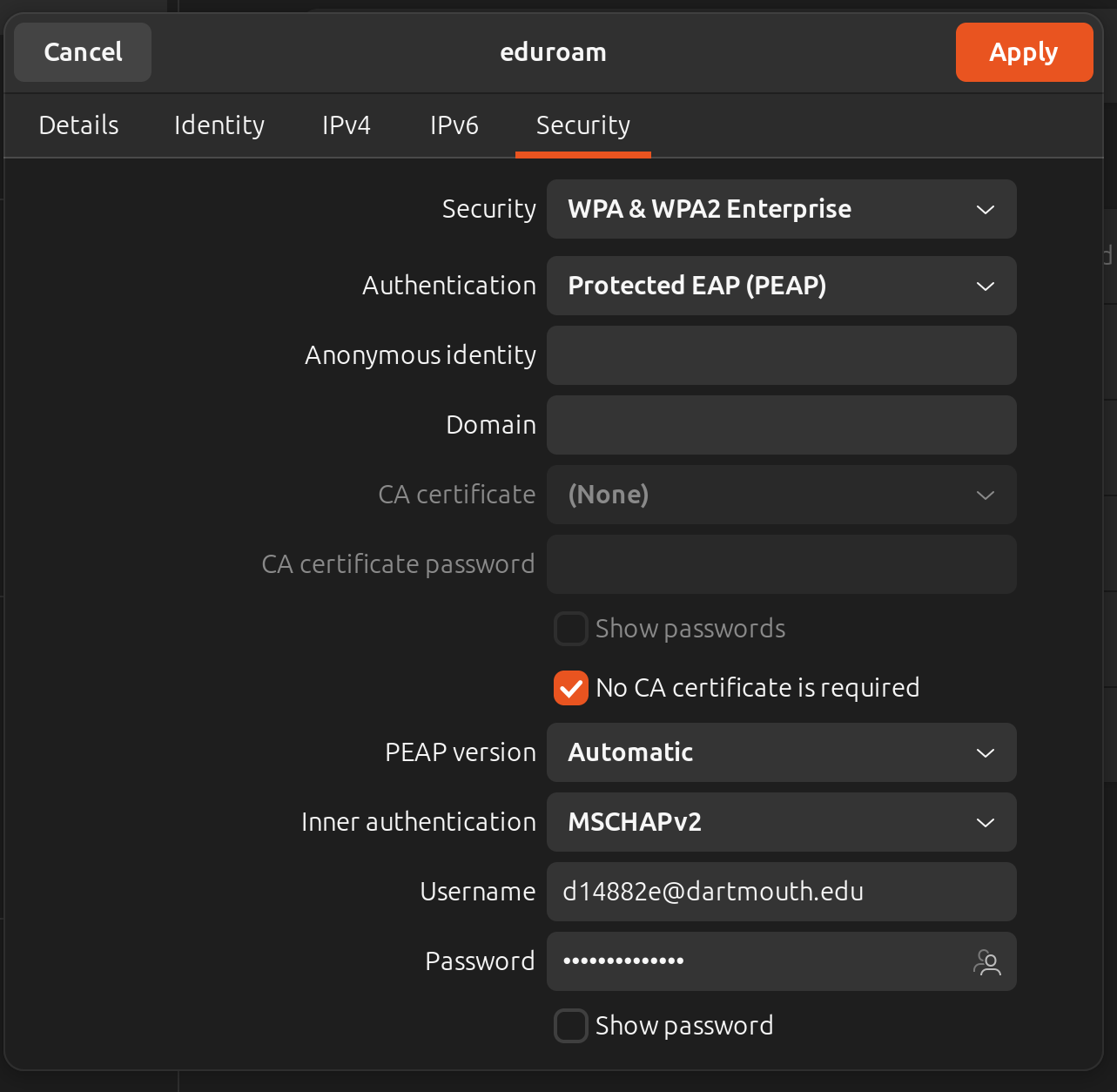
Connecting to Dartmouth Secure Wireless Network
Use the following settings with your NetID and password:
- Wireless Security:
- Security: WPA & WPA2 Enterprise
- Authentication: Protected EAP (PEAP)
- Inner auth. (EAP method): MSCHAPv2
- Username: your NetID